


SS777 Withdrawal: Methods, Limits, Steps and Account Checks
Withdrawal at SS777 starts with choosing where the money should go. Before confirming, check the receiving account, the ₱100–₱50,000 range shown in the cashier, and the six-digit withdrawal password. Those three checks reduce avoidable errors before a request is sent.
SS777 Withdrawal Methods and Limits
A Withdrawal inside SS777 is built around the receiving account. You are not simply entering an amount and pressing a cashout button. The cashier first needs to know exactly where the funds should be sent.
The current Withdrawal menu includes four receiving options:
- GoTyme Bank: A bound account can be selected directly.
- PayMaya: Available through the Add option when no account has been connected yet.
- GCash: Can be added as a receiving wallet.
- Bank Transfer: Available for users who prefer a bank account rather than an e-wallet.
The amount field currently shows a minimum Withdrawal of ₱100 and a maximum of ₱50,000 per request.
That range is only one side of the transaction. Your receiving bank or wallet may have its own account, incoming-transfer, or balance limits. A ₱40,000 request, for example, can sit comfortably inside the SS777 Withdrawal range while still creating a problem if the selected GCash or Maya wallet cannot accept the full amount.
For that reason, the first decision should not be “How much can I withdraw?” It should be “Which account am I withdrawing to, and can that account receive it?”
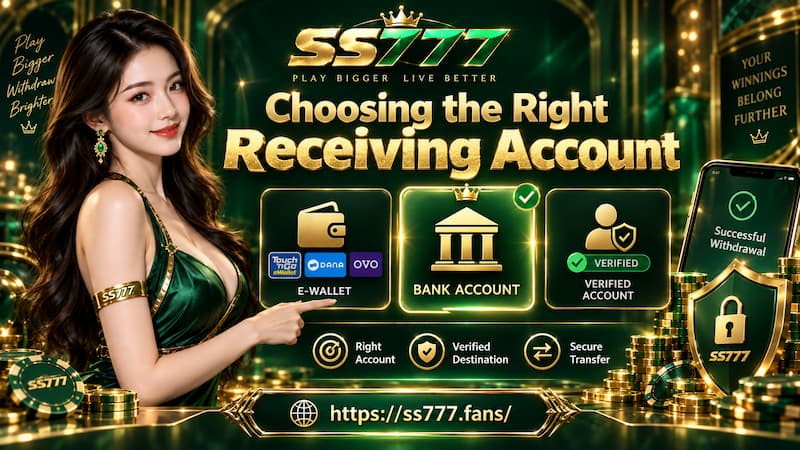
Choosing the Right Receiving Account
The best Withdrawal method is usually the one you can identify and verify quickly. A familiar account with enough receiving capacity is more useful than choosing an option simply because it appears first.
Choosing the Right Receiving Account
GoTyme Bank
A GoTyme Bank account that has already been bound can appear directly in the receiving-account selector. The account number is partly hidden for privacy, while the final digits remain visible.
For example, a saved account may appear as:
**GoTyme Bank (**5367)
Those last four digits are important. If you have used several bank accounts over time, take a second to confirm that 5367 is actually the account you intend to receive the Withdrawal in.
Masked details should be treated as a verification tool, not something to click past.
GCash and PayMaya
GCash and PayMaya appear with an Add option when they have not yet been configured as receiving accounts.
PayMaya is now known as Maya, although the older PayMaya name may still appear in some payment menus. If you use either wallet, check the wallet details before requesting a Withdrawal rather than assuming that an account previously used elsewhere is already connected here.
There is another detail worth checking: Wallet limits.
GCash and Maya can apply different limits depending on the user’s account status or verification level. SS777’s ₱50,000 maximum does not override those limits. The receiving wallet still has to be capable of accepting the amount.
A practical example makes the distinction clearer. Suppose you request ₱35,000 to GCash. That amount meets the SS777 cashier range, but the transaction can still be affected if your wallet is already close to its applicable balance or incoming limit.
Bank Transfer
Bank Transfer is the straightforward alternative when you want funds sent to a conventional bank account.
The main concern here is accuracy. Check the bank and account information carefully before confirming. Unlike choosing between games or changing a lobby setting, receiving-account details are tied directly to where the money goes.
A saved account should never be treated as automatically correct just because it is already listed. Check it again before every Withdrawal.
Withdrawal Amount Limits
The current cashier displays:
- Minimum: ₱100
- Maximum: ₱50,000
That makes a ₱100 request eligible from an amount perspective, while ₱80 is below the displayed minimum. A ₱50,000 Withdrawal falls at the upper end of the current range, while ₱55,000 exceeds the displayed maximum for one request.
The important distinction is between Withdrawal limits and receiving limits.
The first belongs to the Withdrawal request itself. The second belongs to GoTyme Bank, GCash, Maya, or whichever receiving method you select.
They should not be treated as one shared limit.
For larger amounts, check both sides before submitting:
- Confirm that the requested amount fits the SS777 Withdrawal range.
- Check that the destination account can receive the amount.
- Review whether existing wallet balance or incoming transactions have already used part of the receiving account’s allowance.
- Confirm the destination account before entering the Withdrawal password.
This takes little time and gives you a much clearer idea of whether the transaction is ready to submit.
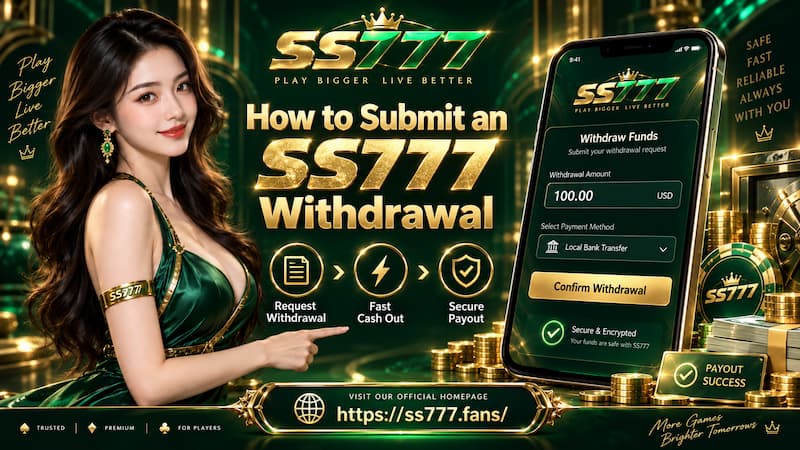
How to Submit an SS777 Withdrawal
Once the receiving account is prepared, the actual Withdrawal sequence is short.
How to Submit an SS777 Withdrawal
1. Open Request Withdrawal
Go to the Request withdrawal section of the cashier. Your available balance appears near the top, followed by the receiving-account selector.
Check the balance first. There is little value in filling out the rest of the form before confirming that funds are actually available for Withdrawal.
2. Select the Receiving Account
Open the account selector and choose the destination you want.
If a GoTyme Bank account is already bound, it can appear immediately with masked account digits. For GCash, PayMaya, or Bank Transfer, use Add when receiving details still need to be connected.
Do not rush this step. The amount can be entered again; the receiving account is the detail that determines where the funds are directed.
3. Enter the Withdrawal Amount
Type the amount in the Withdrawal Amount field.
The current range is ₱100 to ₱50,000, so the entered figure needs to stay within those boundaries.
If you intend to withdraw ₱12,500, for example, enter the amount and then read it once more before moving to the password section. A simple extra digit can completely change a transaction value.
4. Enter the Six-Digit Withdrawal Password
Withdrawal confirmation uses a separate six-digit withdrawal password.
Keep three pieces of information mentally separate:
- Your login credentials control access to the account.
- Your receiving details determine where the funds are sent.
- Your Withdrawal password authorizes the Withdrawal request.
Do not share the Withdrawal password with another person, including someone claiming they need it to “help process” a cashout.
5. Review and Confirm
Before tapping Confirm withdrawal, perform one final check:
- Is the amount correct?
- Is the intended receiving method selected?
- Do the masked bank-account digits match?
- Is the receiving wallet able to accept the amount?
- Have all six Withdrawal password digits been entered correctly?
Once those details line up, the request is ready to be submitted.
Receiving Account and Password Checks
Withdrawal mistakes are often small on screen but significant once money is involved. One wrong account selection matters far more than spending another ten seconds reviewing the form.
The cashier itself reminds users to check the bound account carefully to avoid losing funds. That warning deserves attention, especially when several payment methods have been added.
Before confirming, use this short checklist:
- Match the final digits of a saved GoTyme Bank account with your actual account.
- Check the phone or account details associated with GCash or Maya.
- Make sure the selected receiving account remains active and accessible.
- Confirm that the Withdrawal amount has not gained or lost a digit.
- Check available receiving capacity for larger wallet transfers.
- Never disclose the six-digit Withdrawal password.
There is also a practical reason to finish these checks before typing the password: The password should be the final authorization step, not the moment when you start checking where the money is going.
When Confirm Withdrawal Is Unavailable
A disabled Confirm withdrawal button does not automatically mean something is wrong with the account. First check whether the Withdrawal form is actually complete.
No Available Balance
If the balance shows 0.00, there is no available amount to submit for Withdrawal. In that state, the confirmation button may remain inactive.
No Amount Entered
The Withdrawal Amount field needs a valid figure. Enter an amount within the displayed minimum and maximum range before expecting the request to become confirmable.
Incomplete Withdrawal Password
The password area contains six positions. Leaving part of the six-digit Withdrawal password empty means the authorization step is incomplete.
Receiving Account Still Needs to Be Added
When GCash, PayMaya, or Bank Transfer shows Add, receiving details may still need to be configured.
These visible conditions should be checked before assuming a failed Withdrawal is caused by processing or account restrictions. If the form is complete but the request still cannot be submitted, use the available support channel rather than repeatedly changing financial details without knowing the cause.
Final Checks Before Withdrawal
A good Withdrawal routine is deliberately boring. Use the same checks each time rather than relying on memory.
Before submitting:
- Check the balance: Make sure enough funds are available.
- Check the destination: Confirm the correct GoTyme Bank, GCash, Maya, or bank account.
- Check the account digits: Pay particular attention to masked bank-account endings such as ****5367.
- Check the amount: Keep it within the displayed ₱100–₱50,000 range.
- Check receiving capacity: The destination wallet or bank can have limits separate from SS777.
- Enter the password last: Use the six-digit Withdrawal password only after the other details are correct.
- Read the amount once more: Then confirm the request.
That sequence keeps the process simple while putting attention on the details that can directly affect where the money goes.